Monday, 24 May 2021

Working on CSS Grids

Content


<style>
    * {
        padding: 0;
        margin: 0;
        box-sizing: border-box;
    }
    
   .container {
        font-size: 1.5rem;
        display: grid;
        background-color: beige;
        padding: 5px;
        grid-template-areas: "header header header" "content content sidebar" "footer footer   footer";
        grid-template-rows: 10vh 40vh 10vh;
        grid-gap: 10px;
        width: 100%;
        margin: auto;
      text-align:center;
    }
    
    .navbar {
        grid-area: header;
        background-color: brown;
    }
    
    .mainarea {
        grid-area: content;
        background-color: cadetblue;
    }
    
    .sidebar {
        grid-area: sidebar;
        background-color: chocolate;
    }
    
    .footer {
        grid-area: footer;
        background-color: crimson;
    }
</style>
    <div class="container">
      <div class="navbar">Header</div>
      <div class="mainarea">Content</div>
      <div class="sidebar">Sidebar</div>
      <div class="footer">Footer</div>
  </div>

CSS Grids

Display Property
An HTML element becomes a grid container when its display property is set to grid or inline-grid.

Example:
.grid-container {
  display: grid;
//  display: inline-grid;
}

Grid Gaps
The spaces between each column/row are called gaps.
You can adjust the gap size by using one of the following properties:
grid-column-gap
grid-row-gap
grid-gap

Example:
.grid-container {
  display: grid;
  grid-column-gap: 50px;
 // grid-row-gap: 50px;
}

Example:
The grid-gap property is a shorthand property for the grid-row-gap and the grid-column-gap properties:

.grid-container {
  display: grid;
  grid-gap: 50px 100px;
//  grid-gap: 50px;
}

The grid-gap property can also be used to set both the row gap and the column gap in one value:
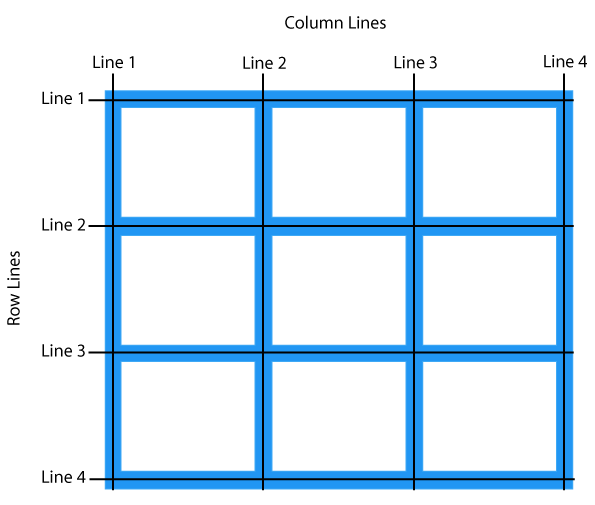

Grid Container

To make an HTML element behave as a grid container, you have to set the display property to grid or inline-grid.

The grid-template-columns Property
The grid-template-columns property defines the number of columns in your grid layout, and it can define the width of each column.
The value is a space-separated-list, where each value defines the width of the respective column.
If you want your grid layout to contain 4 columns, specify the width of the 4 columns, or "auto" if all columns should have the same width.

Example:
.grid-container {
  display: grid;
  grid-template-columns: auto auto 200px 30% 1fr 2fr;        //units :fr,px,em,vh
}

The grid-template-rows Property
The grid-template-rows property defines the height of each row.
The value is a space-separated-list, where each value defines the height of the respective row:

Example:
.grid-container {
  display: grid;
  grid-template-rows: 80px 200px;
}
The justify-content Property
The justify-content property is used to align the whole grid inside the container.
Note: The grid's total width has to be less than the container's width for the justify-content property to have any effect.

Example:
.grid-container {
  display: grid;
  justify-content: space-evenly;         //values:space-around,space-between,start,end,center
}

The align-content Property
The align-content property is used to vertically align the whole grid inside the container.
Note: The grid's total height has to be less than the container's height for the align-content property to have any effect.

Example:
.grid-container {
  display: grid;
  height: 400px;
  align-content: center;                    //values:space-around,space-between,start,end,center
}

 Grid Items

Child Elements (Items)
A grid container contains grid items.
By default, a container has one grid item for each column, in each row, but you can style the grid items so that they will span multiple columns and/or rows.

The grid-column Property
The grid-column property defines on which column(s) to place an item.
You define where the item will start, and where the item will end.
Note: The grid-column property is a shorthand property for the grid-column-start and the grid-column-end properties.

Example:
.item1 {
  grid-column: 1 / 5;
  grid-column: 1 / span 3;     //Make "item1" start on column 1 and span 3 columns
}
The grid-row Property
The grid-row property defines on which row to place an item.
You define where the item will start, and where the item will end. 
Note: The grid-row property is a shorthand property for the grid-row-start and the grid-row-end properties.

Example:
.item1 {
  grid-row: 1 / 4;                 //Make "item1" start on row-line 1 and end on row-line 4
  grid-row: 1 / span 2;         //Make "item1" start on row 1 and span 2 rows
}
The grid-area Property
The grid-area property can be used as a shorthand property for the grid-row-start, grid-column-start, grid-row-end and the grid-column-end properties. 

Example:
.item8 {
  grid-area: 1 / 2 / 5 / 6;         //Make "item8" start on row-line 1 and column-line 2, and                                                 end on row-line 5 and column line 6 
  grid-area: 2 / 1 / span 2 / span 3;      //Make "item8" start on row-line 2 and column-                                                                  -line 1, and span 2 rows and 3 columns
}


Naming Grid Items
The grid-area property can also be used to assign names to grid items.
Named grid items can be referred to by the grid-template-areas property of the grid container.

Example:
Item1 gets the name "myArea" and spans all five columns in a five columns grid layout:

.item1 {
  grid-area: myArea;
}
.grid-container {
  grid-template-areas: 'myArea myArea myArea myArea myArea';
}

Each row is defined by apostrophes (' ')
The columns in each row is defined inside the apostrophes, separated by a space.
Note: A period sign represents a grid item with no name.

Example:
Let "myArea" span two columns in a five columns grid layout (period signs represent items with no name):

.item1 {
  grid-area: myArea;
}
.grid-container {
  grid-template-areas: 'myArea myArea . . .';
}

.item1 { grid-area: header; }
.item2 { grid-area: menu; }
.item3 { grid-area: main; }
.item4 { grid-area: right; }
.item5 { grid-area: footer; }

.grid-container {
  grid-template-areas:
    'header header header header header header'
    'menu main main main right right'
    'menu footer footer footer footer footer';
The grid-template Property
The grid-template property is a shorthand property for defining grid columns, rows, and areas.
This property is a shorthand for the following CSS properties:
grid-template-areas
grid-template-columns
grid-template-rows

Syntax:
 grid-template: "header header header" 20%
                         "content content content" auto 
                         "sidebar sidebar" 100px 1fr / 50px 1fr;     //'item area name'  column /                                                                                                    row


Sunday, 16 May 2021

CSS Positions: Fixed vs Sticky

1
2
3
4

Code

<style>
    .container {
        background-color: aquamarine;
        height: 200em;
        width: 100%;
        border: 1px solid black;
    }
    
    .box {
        height: 100px;
        width: 100px;
        background-color: cadetblue;
        border: 1px solid green;
        display: inline-block;
    }
    
    #box-3 {
        position: fixed;
        top: 20px;
        left: 100px;
    }
    
    #box-4 {
        margin-top: 20vh;
        margin-left: 50vw;
        position: sticky;
        top: 80px;
    }
</style>

<body>
    <div class="container">
        <div class="box" id="box-1">1</div>
        <div class="box" id="box-2">2</div>
        <div class="box" id="box-3">3</div>
        <div class="box" id="box-4">4</div>

    </div>
</body>

Wednesday, 5 May 2021

CSS BASICS PART II

CSS List Properties

Property                 Description
list-style                 Sets all the properties for a list in one declaration
list-style-image Specifies an image as the list-item marker
list-style-position Specifies the position of the list-item markers (bullet points)
list-style-type         Specifies the type of list-item marker
The list-style property is a shorthand property. It is used to set all the list properties in one declaration
Example:
ul {
  list-style: square inside url("sqpurple.gif");
}
When using the shorthand property, the order of the property values are:
list-style-type
list-style-position 
list-style-image

The display Property

The display property specifies if/how an element is displayed.
Every HTML element has a default display value depending on what type of element it is. The default display value for most elements is block or inline.

Block-level Elements

A block-level element always starts on a new line and takes up the full width available (stretches out to the left and right as far as it can).
Examples of block-level elements:
<div>
<h1> - <h6>
<p>
<form>
<header>
<footer>
<section>

Inline Elements

An inline element does not start on a new line and only takes up as much width as necessary.
Examples of inline elements:
<span>
<a>
<img>

Display: none
display: none; is commonly used with JavaScript to hide and show elements without deleting and recreating them. 
The <script> element uses display: none; as default. 
Hiding an element can be done by setting the display property to none. The element will be hidden, and the page will be displayed as if the element is not there:
Example:
h1.hidden {
  display: none;
}
visibility:hidden; also hides an element.
However, the element will still take up the same space as before. The element will be hidden, but still affect the layout:

The position Property

The position property specifies the type of positioning method used for an element.
There are five different position values:
static
relative
fixed
absolute
sticky
Elements are then positioned using the top, bottom, left, and right properties. However, these properties will not work unless the position property is set first. They also work differently depending on the position value.

position: static
HTML elements are positioned static by default.
Static positioned elements are not affected by the top, bottom, left, and right properties.
An element with position: static; is not positioned in any special way; it is always positioned according to the normal flow of the page.

position: relative
An element with position: relative; is positioned relative to its normal position.
Setting the top, right, bottom, and left properties of a relatively-positioned element will cause it to be adjusted away from its normal position. Other content will not be adjusted to fit into any gap left by the element.

position: fixed
An element with position: fixed; is positioned relative to the viewport, which means it always stays in the same place even if the page is scrolled. The top, right, bottom, and left properties are used to position the element.
A fixed element does not leave a gap in the page where it would normally have been located.

position: absolute
An element with position: absolute; is positioned relative to the nearest positioned ancestor (instead of positioned relative to the viewport, like fixed).
However; if an absolute positioned element has no positioned ancestors, it uses the document body, and moves along with page scrolling.

Note: A "positioned" element is one whose position is anything except static.

position: sticky
An element with position: sticky; is positioned based on the user's scroll position.
A sticky element toggles between relative and fixed, depending on the scroll position. It is positioned relative until a given offset position is met in the viewport - then it "sticks" in place (like position:fixed).

Overlapping Elements
  • When elements are positioned, they can overlap other elements.
  • The z-index property specifies the stack order of an element (which element should be placed in front of, or behind, the others).
  • An element can have a positive or negative stack order
  • An element with greater stack order is always in front of an element with a lower stack order.

Note: If two positioned elements overlap without a z-index specified, the element positioned last in the HTML code will be shown on top.

CSS Overflow

The overflow property specifies whether to clip the content or to add scrollbars when the content of an element is too big to fit in the specified area.
The overflow property has the following values:
visible - Default. The overflow is not clipped. The content renders outside the element's box
hidden - The overflow is clipped, and the rest of the content will be invisible
scroll - The overflow is clipped, and a scrollbar is added to see the rest of the content
auto - Similar to scroll, but it adds scrollbars only when necessary

 Note: The overflow property only works for block elements with a specified height.

  • The overflow-x and overflow-y properties specifies whether to change the overflow of content just horizontally or vertically (or both)
  • overflow-x specifies what to do with the left/right edges of the content.
  • overflow-y specifies what to do with the top/bottom edges of the content.

The float Property

The float property is used for positioning and formatting content e.g. let an image float left to the text in a container.
The float property can have one of the following values:
left - The element floats to the left of its container
right - The element floats to the right of its container
none - The element does not float (will be displayed just where it occurs in the text). its default
inherit - The element inherits the float value of its parent

In its simplest use, the float property can be used to wrap text around images.

The clear Property

The clear property specifies what elements can float beside the cleared element and on which side.
The clear property can have one of the following values:
none - Allows floating elements on both sides. This is default
left - No floating elements allowed on the left side
right- No floating elements allowed on the right side
both - No floating elements allowed on either the left or the right side
inherit - The element inherits the clear value of its parent

The most common way to use the clear property is after you have used a float property on an element.
When clearing floats, you should match the clear to the float: If an element is floated to the left, then you should clear to the left. Your floated element will continue to float, but the cleared element will appear below it on the web page.

The display: inline-block Value

Compared to display: inline, the major difference is that display: inline-block allows to set a width and height on the element.
Also, with display: inline-block, the top and bottom margins/paddings are respected, but with display: inline they are not.
Compared to display: block, the major difference is that display: inline-block does not add a line-break after the element, so the element can sit next to other elements.

Center Align Elements

To horizontally center a block element (like <div>), use margin: auto;
Setting the width of the element will prevent it from stretching out to the edges of its container.

CSS Combinators

A combinator is something that explains the relationship between the selectors.
A CSS selector can contain more than one simple selector. Between the simple selectors, we can include a combinator.
There are four different combinators in CSS:
descendant selector (space)
child selector (>)
adjacent sibling selector (+)
general sibling selector (~)

Selector                     Example Description
element element     div p         Selects all <p> elements inside <div> elements
element>element     div > p         Selects all <p> elements where the parent is a <div> element
element+element     div + p         Selects the first <p> element that are placed immediately after                                                             <div> elements
element1~element2    p ~ ul         Selects every <ul> element that are preceded by a <p> element

Pseudo-classes

A pseudo-class is used to define a special state of an element.
For example, it can be used to:
  • Style an element when a user mouses over it
  • Style visited and unvisited links differently
  • Style an element when it gets focus
REFER Here:
https://www.w3schools.com/css/css_pseudo_classes.asp
https://www.w3schools.com/css/css_pseudo_elements.asp


CSS BASICS PART I

CSS Selectors

CSS selectors are used to "find" (or select) the HTML elements you want to style.

Selector                    Example      Description
#id                            #firstname     Selects the element with id="firstname"
.class                  .intro              Selects all elements with class="intro"
element.class          p.intro            Selects only <p> elements with class="intro"
*                          *                Selects all elements
element                  p                 Selects all <p> elements
element,element,.. div, p        Selects all <div> elements and all <p> elements

CSS Backgrounds

The CSS background properties are used to add background effects for elements.
background-color
background-image
background-repeat
background-attachment
background-position
background (shorthand property)

CSS background-repeat
By default, the background-image property repeats an image both horizontally and vertically.

CSS background-position
The background-position property is used to specify the position of the background image.
Example:
Position the background image in the top-right corner:
body {
  background-image: url("img_tree.png");
  background-repeat: no-repeat;
  background-position: right top;
}
CSS background-attachment
The background-attachment property specifies whether the background image should scroll or be fixed (will not scroll with the rest of the page)

Use the shorthand property to set the background properties in one declaration:
body {
  background: #ffffff url("img_tree.png") no-repeat right top;
}
When using the shorthand property the order of the property values is:
  1. background-color
  2. background-image
  3. background-repeat
  4. background-attachment
  5. background-position

CSS Border Style

The border-style property specifies what kind of border to display.
The following values are allowed:
dotted - Defines a dotted border
dashed - Defines a dashed border
solid - Defines a solid border
double - Defines a double border
none - Defines no border
hidden - Defines a hidden border
The border property is a shorthand property for the following individual border properties:
border-width
border-style (required)
border-color
Example:
p {
  border: 5px solid red;
}
CSS Rounded Borders
The border-radius property is used to add rounded borders to an element.

CSS Margins

The CSS margin properties are used to create space around elements, outside of any defined borders.
With CSS, you have full control over the margins. There are properties for setting the margin for each side of an element (top, right, bottom, and left).

CSS has properties for specifying the margin for each side of an element:
margin-top
margin-right
margin-bottom
margin-left
All the margin properties can have the following values:
auto - the browser calculates the margin
length - specifies a margin in px, pt, cm, etc.
% - specifies a margin in % of the width of the containing element
inherit - specifies that the margin should be inherited from the parent element
 
Margin Collapse
Top and bottom margins of elements are sometimes collapsed into a single margin that is equal to the largest of the two margins.
This does not happen on left and right margins! Only top and bottom margins!

CSS Padding

The CSS padding properties are used to generate space around an element's content, inside of any defined borders.

CSS has properties for specifying the padding for each side of an element:
padding-top
padding-right
padding-bottom
padding-left

All the padding properties can have the following values:
length - specifies a padding in px, pt, cm, etc.
% - specifies a padding in % of the width of the containing element
inherit - specifies that the padding should be inherited from the parent element

CSS Outline

An outline is a line that is drawn around elements, OUTSIDE the borders, to make the element "stand out".
CSS has the following outline properties:
outline-style
outline-color
outline-width
outline-offset
outline
Note: Outline differs from borders! Unlike border, the outline is drawn outside the element's border, and may overlap other content. Also, the outline is NOT a part of the element's dimensions; the element's total width and height is not affected by the width of the outline.

CSS Outline Style
The outline-style property specifies the style of the outline, and can have one of the following values:
dotted - Defines a dotted outline
dashed - Defines a dashed outline
solid - Defines a solid outline
double - Defines a double outline
none - Defines no outline
hidden - Defines a hidden outline

The outline property is a shorthand property for setting the following individual outline properties:
outline-width
outline-style (required)
outline-color

Example: 

p.ex3 {outline: 5px solid yellow;}

Text Alignment

  • The text-align property is used to set the horizontal alignment of a text.
  • A text can be left or right aligned, centered, or justified.
  • When the text-align property is set to "justify", each line is stretched so that every line has equal width, and the left and right margins are straight.

Text Properties

  • The text-decoration property is used to set or remove decorations from text.
  • The value text-decoration: none; is often used to remove underlines from links:
  • The text-indent property is used to specify the indentation of the first line of a text:
  • The letter-spacing property is used to specify the space between the characters in a text.
  • The line-height property is used to specify the space between lines:
  • The word-spacing property is used to specify the space between the words in a text.
  • The white-space property specifies how white-space inside an element is handled.
  • The text-shadow property adds shadow to text.
This example demonstrates how to disable text wrapping inside an element:
Example:
p {
  white-space: nowrap;
}
h1 {
  text-shadow: 2px 2px 5px red; /*--here 5px is blur value--*/
}

CSS Fonts

The font property is a shorthand property for:
font-style
font-variant
font-weight
font-size/line-height
font-family

Example:
p.b {
  font: italic small-caps bold 12px/30px Georgia, serif;
}

Monday, 3 May 2021

Trigonometry & Algebra

sin2θ+cos2θ=1

tan2θ+1=sec2θ

sin(−θ)=−sinθ
tan(−θ)=−tanθ
cot(−θ)=−cotθ
cos(−θ)=cosθ
sec(−θ)=secθ


tan3A=3tanAtan3A13tan2A


 Algebra Formula: Laws Of Exponent

  1. a0 = 1
  2. a-m = 1/am
  3. (am)n = amn
  4. am / an = am-n
  5. am x b= (ab)m
  6. am / b= (a/b)m
  7. (a/b)-m = (b/a)m
  8. (1)n = 1 for infinite values of n.
  1. (a + b)2 = a2 + 2ab + b2
  2. (a – b)2 = a2 – 2ab + b2
  3. (a + b) (a – b) = a2 – b2
(x + a) (x + b) = x2 + (a + b) x + ab
(x – a) (x – b) = x2 – (a + b) x + ab
  1. (a + b)3 = a3 + b3 + 3ab (a + b)
  2. (a – b)3 = a3 – b3 – 3ab (a – b)
  3. (x + y + z)2 = x2 + y2 + z2 + 2xy +2yz + 2xz
  4. x3 + y3 + z3 – 3xyz = (x + y + z) (x2 + y2 + z2 – xy – yz -xz)
  5. x3 + y3 = (x + y) (x– xy + y2)
  6. x3 – y3 = (x – y) (x+ xy + y2)