Friday, 23 April 2021

HTML ADVANCE PART I

 HTML - The Head Element

The HTML <head> element is a container for the following elements: <title>, <style>, <meta>, <link>, <script>, and <base>.

The HTML <head> Element

The <head> element is a container for metadata (data about data) and is placed between the <html> tag and the <body> tag.
HTML metadata is data about the HTML document. Metadata is not displayed.
Metadata typically define the document title, character set, styles, scripts, and other meta information.

The HTML <title> Element

The <title> element defines the title of the document. The title must be text-only, and it is shown in the browser's title bar or in the page's tab.
The <title> element is required in HTML documents!
The contents of a page title is very important for search engine optimization (SEO)! The page title is used by search engine algorithms to decide the order when listing pages in search results.

The <title> element:
  • defines a title in the browser toolbar
  • provides a title for the page when it is added to favorites
  • displays a title for the page in search engine-results
  • So, try to make the title as accurate and meaningful as possible!

The HTML <style> Element

The <style> element is used to define style information for a single HTML page:
Example:
<style>
  body {background-color: powderblue;}
  h1 {color: red;}
  p {color: blue;}
</style>

The HTML <link> Element

The <link> element defines the relationship between the current document and an external resource.
The <link> tag is most often used to link to external style sheets:
Example:
<link rel="stylesheet" href="mystyle.css">

The HTML <meta> Element

The <meta> element is typically used to specify the character set, page description, keywords, author of the document, and viewport settings.
The metadata will not be displayed on the page, but are used by browsers (how to display content or reload page), by search engines (keywords), and other web services.

Examples:
Define the character set used:
<meta charset="UTF-8">

Define keywords for search engines:
<meta name="keywords" content="HTML, CSS, JavaScript">

Define a description of your web page:
<meta name="description" content="Free Web tutorials">

Define the author of a page:
<meta name="author" content="John Doe">

Refresh document every 30 seconds:
<meta http-equiv="refresh" content="30">

Setting the viewport to make your website look good on all devices:
<meta name="viewport" content="width=device-width, initial-scale=1.0">

Example of <meta> tags:

<meta charset="UTF-8">
<meta name="description" content="Free Web tutorials">
<meta name="keywords" content="HTML, CSS, JavaScript">
<meta name="author" content="John Doe">

Setting The Viewport

The viewport is the user's visible area of a web page. It varies with the device - it will be smaller on a mobile phone than on a computer screen.
You should include the following <meta> element in all your web pages:
<meta name="viewport" content="width=device-width, initial-scale=1.0">

This gives the browser instructions on how to control the page's dimensions and scaling.
The width=device-width part sets the width of the page to follow the screen-width of the device (which will vary depending on the device).
The initial-scale=1.0 part sets the initial zoom level when the page is first loaded by the browser.

The HTML <script> Element

The <script> element is used to define client-side JavaScripts.
The following JavaScript writes "Hello JavaScript!" into an HTML element with id="demo":
Example:
<script>
function myFunction() {
  document.getElementById("demo").innerHTML = "Hello JavaScript!";
}
</script>

The HTML <base> Element

The <base> element specifies the base URL and/or target for all relative URLs in a page.
The <base> tag must have either an href or a target attribute present, or both.
There can only be one single <base> element in a document!
Example:
Specify a default URL and a default target for all links on a page:

<head>
<base href="https://www.w3schools.com/" target="_blank">
</head>
<body>
<img src="images/stickman.gif" width="24" height="39" alt="Stickman">
<a href="tags/tag_base.asp">HTML base Tag</a>
</body> 

Chapter Summary

  • The <head> element is a container for metadata (data about data)
  • The <head> element is placed between the <html> tag and the <body> tag
  • The <title> element is required and it defines the title of the document
  • The <style> element is used to define style information for a single document
  • The <link> tag is most often used to link to external style sheets
  • The <meta> element is typically used to specify the character set, page description, keywords, author of the document, and viewport settings
  • The <script> element is used to define client-side JavaScripts
  • The <base> element specifies the base URL and/or target for all relative URLs in a page

HTML Layout Elements

HTML has several semantic elements that define the different parts of a web page:
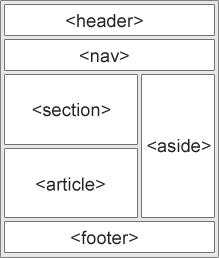

<header> - Defines a header for a document or a section
<nav> - Defines a set of navigation links
<section> - Defines a section in a document
<article> - Defines an independent, self-contained content
<aside> - Defines content aside from the content (like a sidebar)
<footer> - Defines a footer for a document or a section
<details> - Defines additional details that the user can open and close on demand
<summary> - Defines a heading for the <details> element


HTML Layout Techniques

There are four different techniques to create multicolumn layouts. Each technique has its pros and cons:
  1. CSS framework
  2. CSS float property
  3. CSS flexbox
  4. CSS grid

HTML Responsive Web Design

Responsive web design is about creating web pages that look good on all devices!
A responsive web design will automatically adjust for different screen sizes and viewports.

Setting The Viewport

To create a responsive website, add the following <meta> tag to all your web pages:
Example:
<meta name="viewport" content="width=device-width, initial-scale=1.0">

This will set the viewport of your page, which will give the browser instructions on how to control the page's dimensions and scaling

Responsive Images

Responsive images are images that scale nicely to fit any browser size.
Using the width Property
If the CSS width property is set to 100%, the image will be responsive and scale up and down

Using the max-width Property
If the max-width property is set to 100%, the image will scale down if it has to, but never scale up to be larger than its original size

Media Queries

In addition to resize text and images, it is also common to use media queries in responsive web pages.
With media queries you can define completely different styles for different browser sizes.

Example:
@media screen and (max-width: 800px) {
  .left, .main, .right {
    width: 100%; /* The width is 100%, when the viewport is 800px or smaller */
  }

HTML INTERMEDIATES PART III

 HTML Iframes

An HTML iframe is used to display a web page within a web page.
The HTML <iframe> tag specifies an inline frame.
An inline frame is used to embed another document within the current HTML document.

Syntax:
<iframe src="url" title="description">
<iframe src="demo_iframe.htm" style="height:200px;width:300px;" title="Iframe Example"></iframe> 

By default, an iframe has a border around it.
To remove the border, add the style attribute and use the CSS border property:
Example:
<iframe src="demo_iframe.htm" style="border:none;" title="Iframe Example"></iframe>

With CSS, you can also change the size, style and color of the iframe's border:
Example:
<iframe src="demo_iframe.htm" style="border:2px solid red;" title="Iframe Example"></iframe> 

An iframe can be used as the target frame for a link.
The target attribute of the link must refer to the name attribute of the iframe:
Example:
<iframe src="demo_iframe.htm" name="iframe_a" title="Iframe Example"></iframe>
<p><a href="https://www.w3schools.com" target="iframe_a">W3Schools.com</a></p>

Chapter Summary

The HTML <iframe> tag specifies an inline frame
The src attribute defines the URL of the page to embed
Always include a title attribute (for screen readers)
The height and width attributes specifies the size of the iframe
Use border:none; to remove the border around the iframe 

HTML JavaScript

JavaScript makes HTML pages more dynamic and interactive.

The HTML <script> Tag

The HTML <script> tag is used to define a client-side script (JavaScript).
The <script> element either contains script statements, or it points to an external script file through the src attribute.
Common uses for JavaScript are image manipulation, form validation, and dynamic changes of content.
To select an HTML element, JavaScript most often uses the document.getElementById() method.
This JavaScript example writes "Hello JavaScript!" into an HTML element with id="demo":

Example:
<script>
document.getElementById("demo").innerHTML = "Hello JavaScript!";
</script>

The HTML <noscript> Tag

The HTML <noscript> tag defines an alternate content to be displayed to users that have disabled scripts in their browser or have a browser that doesn't support scripts:
Example:
<script>
document.getElementById("demo").innerHTML = "Hello JavaScript!";
</script>
<noscript>Sorry, your browser does not support JavaScript!</noscript> 

HTML File Paths

A file path describes the location of a file in a web site's folder structure. 

Absolute File Paths

An absolute file path is the full URL to a file:
Example:
<img src="https://www.w3schools.com/images/picture.jpg" alt="Mountain">

Relative File Paths

A relative file path points to a file relative to the current page.
In the following example, the file path points to a file in the images folder located at the root of the current web:
Example:
<img src="/images/picture.jpg" alt="Mountain"> 

In the following example, the file path points to a file in the images folder located in the folder one level up from the current folder:
Example:
<img src="../images/picture.jpg" alt="Mountain">
 

Wednesday, 21 April 2021

HTML INTERMEDIATES PART II

HTML Block and Inline Elements

Every HTML element has a default display value, depending on what type of element it is.
There are two display values: block and inline.

Block-level Elements

A block-level element always starts on a new line.
A block-level element always takes up the full width available (stretches out to the left and right as far as it can).
A block level element has a top and a bottom margin, whereas an inline element does not.
Example:
<div>Hello World</div>
 
Here are the block-level elements in HTML:

<address>    <article>    <aside>    <blockquote>    <canvas>    <dd>    <div>    <dl>    <dt>    <fieldset>    <figcaption>    <figure>    <footer>    <form>    <h1>-<h6>    <header>    <hr>    <li>    <main>    <nav>    <noscript>    <ol>    <p>    <pre>    <section>    <table>    <tfoot>    <ul>    <video>

Inline Elements

An inline element does not start on a new line.
An inline element only takes up as much width as necessary.
Example:
<span>Hello World</span> 
 
Here are the inline elements in HTML:

<a>    <abbr>    <acronym>    <b>    <bdo>    <big>    <br>    <button>    <cite>    <code>    <dfn>    <em>    <i>    <img>    <input>    <kbd>    <label>    <map>    <object>    <output>    <q>    <samp>    <script>    <select>    <small>    <span>    <strong>    <sub>    <sup>    <textarea>    <time>    <tt>    <var>

Note: An inline element cannot contain a block-level element!

The <div> Element

The <div> element is often used as a container for other HTML elements.
The <div> element has no required attributes, but style, class and id are common.
When used together with CSS, the <div> element can be used to style blocks of content:

<div style="background-color:black;color:white;padding:20px;">
  <h2>London</h2>
  <p>London is the capital city of England. It is the most populous city in the United Kingdom, with a metropolitan area of over 13 million inhabitants.</p>
</div>

The <span> Element

The <span> element is an inline container used to mark up a part of a text, or a part of a document.
The <span> element has no required attributes, but style, class and id are common.
When used together with CSS, the <span> element can be used to style parts of the text:

<p>My mother has <span style="color:blue;font-weight:bold">blue</span> eyes and my father has <span style="color:darkolivegreen;font-weight:bold">dark green</span> eyes.</p>

Summary 

  • There are two display values: block and inline
  • A block-level element always starts on a new line and takes up the full width available
  • An inline element does not start on a new line and it only takes up as much width as necessary
  • The <div> element is a block-level and is often used as a container for other HTML elements
  • The <span> element is an inline container used to mark up a part of a text, or a part of a document 

HTML class Attribute

The HTML class attribute is used to specify a class for an HTML element.
Multiple HTML elements can share the same class.
The class attribute is often used to point to a class name in a style sheet. It can also be used by a JavaScript to access and manipulate elements with the specific class name.
To create a class; write a period (.) character, followed by a class name. 
Then, define the CSS properties within curly braces {}:

<style>
.city {
  background-color: tomato;
  color: white;
  padding: 10px;
}
</style>
<h2 class="city">London</h2>
<p>London is the capital of England.</p> 

Multiple Classes

HTML elements can belong to more than one class.
To define multiple classes, separate the class names with a space, e.g. <div class="city main">. The element will be styled according to all the classes specified.
Different HTML elements can point to the same class name.

Use of The class Attribute in JavaScript

The class name can also be used by JavaScript to perform certain tasks for specific elements.
JavaScript can access elements with a specific class name with the getElementsByClassName() method:
Example:
<script>
function myFunction() {
  var x = document.getElementsByClassName("city");
  for (var i = 0; i < x.length; i++) {
    x[i].style.display = "none";
  }
}
</script>

Chapter Summary

  • The HTML class attribute specifies one or more class names for an element
  • Classes are used by CSS and JavaScript to select and access specific elements
  • The class attribute can be used on any HTML element
  • The class name is case sensitive
  • Different HTML elements can point to the same class name
  • JavaScript can access elements with a specific class name with the getElementsByClassName() method

HTML id Attribute 

The HTML id attribute is used to specify a unique id for an HTML element.
You cannot have more than one element with the same id in an HTML document.
The id attribute specifies a unique id for an HTML element. The value of the id attribute must be unique within the HTML document.
The id attribute is used to point to a specific style declaration in a style sheet. It is also used by JavaScript to access and manipulate the element with the specific id.
The syntax for id is: write a hash character (#), followed by an id name. Then, define the CSS properties within curly braces {}.

<style>
#myHeader {
  background-color: lightblue;
  color: black;
  padding: 40px;
  text-align: center;
}
</style>
<h1 id="myHeader">My Header</h1>
Note: The id name is case sensitive!
Note: The id name must contain at least one character, and must not contain whitespaces (spaces, tabs, etc.).

HTML Bookmarks with ID and Links

HTML bookmarks are used to allow readers to jump to specific parts of a webpage.
Bookmarks can be useful if your page is very long.
To use a bookmark, you must first create it, and then add a link to it.
Then, when the link is clicked, the page will scroll to the location with the bookmark.

Example:
First, create a bookmark with the id attribute:
<h2 id="C4">Chapter 4</h2>

Then, add a link to the bookmark ("Jump to Chapter 4"), from within the same page:
Example:
<a href="#C4">Jump to Chapter 4</a>

Or, add a link to the bookmark ("Jump to Chapter 4"), from another page:
<a href="html_demo.html#C4">Jump to Chapter 4</a>

Using The id Attribute in JavaScript

The id attribute can also be used by JavaScript to perform some tasks for that specific element.
JavaScript can access an element with a specific id with the getElementById() method:

Example:
Use the id attribute to manipulate text with JavaScript:

<script>
function displayResult() {
  document.getElementById("myHeader").innerHTML = "Have a nice day!";
}
</script>

Chapter Summary

  • The id attribute is used to specify a unique id for an HTML element
  • The value of the id attribute must be unique within the HTML document
  • The id attribute is used by CSS and JavaScript to style/select a specific element
  • The value of the id attribute is case sensitive
  • The id attribute is also used to create HTML bookmarks
  • JavaScript can access an element with a specific id with the getElementById() method


HTML INTERMEDIATES PART I

HTML Tables

HTML tables allow web developers to arrange data into rows and columns.

Define a HTML Table:
The <table> tag defines an HTML table.
Each table row is defined with a <tr> tag. Each table header is defined with a <th> tag. Each table data/cell is defined with a <td> tag.
By default, the text in <th> elements are bold and centered.
By default, the text in <td> elements are regular and left-aligned.

<table style="width:100%">
  <tr>
    <th>Firstname</th>
    <th>Lastname</th>
    <th>Age</th>
  </tr>
  <tr>
    <td>Jill</td>
    <td>Smith</td>
    <td>50</td>
  </tr>
  <tr>
    <td>Eve</td>
    <td>Jackson</td>
    <td>94</td>
  </tr>
</table>

  • To let the borders collapse into one border, add the CSS border-collapse property:

table, th, td {
  border: 1px solid black;
  border-collapse: collapse;
  • Cell padding specifies the space between the cell content and its borders.
  • If you do not specify a padding, the table cells will be displayed without padding.
th, td {
  padding: 15px;
}
  • By default, table headings are bold and centered.
  • To left-align the table headings, use the CSS text-align property:
th {
  text-align: left;
}
  • Border spacing specifies the space between the cells.
  • To set the border spacing for a table, use the CSS border-spacing property:
table {
  border-spacing: 5px;
}

Note: If the table has collapsed borders, border-spacing has no effect. 

HTML Table - Cell that Spans Many Columns

To make a cell span more than one column, use the colspan attribute:
Example:
<table style="width:100%">
  <tr>
    <th>Name</th>
    <th colspan="2">Telephone</th>
  </tr>
  <tr>
    <td>Bill Gates</td>
    <td>55577854</td>
    <td>55577855</td>
  </tr>
</table>

 HTML Table - Cell that Spans Many Rows

To make a cell span more than one row, use the rowspan attribute:
Example
<table style="width:100%">
  <tr>
    <th>Name:</th>
    <td>Bill Gates</td>
  </tr>
  <tr>
    <th rowspan="2">Telephone:</th>
    <td>55577854</td>
  </tr>
  <tr>
    <td>55577855</td>
  </tr>
</table>

HTML Lists

An unordered HTML list:
  • Item
  • Item
  • Item
  • Item
An ordered HTML list:
  1. First item
  2. Second item
  3. Third item
  4. Fourth item
  • An unordered list starts with the <ul> tag. Each list item starts with the <li> tag.
  • An ordered list starts with the <ol> tag. Each list item starts with the <li> tag.
<ol>
  <li>Coffee</li>
  <li>Tea</li>
  <li>Milk</li>
</ol>
<ul>
  <li>Coffee</li>
  <li>Tea</li>
  <li>Milk</li>
</ul> 

Unordered HTML List 

The CSS list-style-type property is used to define the style of the list item marker. It can have one of the following values: 

<ul style="list-style-type:disc;">
<ul style="list-style-type:circle;">
<ul style="list-style-type:square;">
<ul style="list-style-type:none;">
 <li>Coffee</li>
  <li>Tea</li>
  <li>Milk</li>
</ul>
Use the CSS property float:left to display a list horizontally
li {
  float: left;
}

Ordered HTML List

The type attribute of the <ol> tag, defines the type of the list item marker:

Type         Description

type="1" The list items will be numbered with numbers (default)

type="A" The list items will be numbered with uppercase letters

type="a" The list items will be numbered with lowercase letters

type="I" The list items will be numbered with uppercase roman numbers

type="i" The list items will be numbered with lowercase roman numbers

<ol type="1">
<ol type="A">
<ol type="a">
<ol type="I">
<ol type="i">
  <li>Coffee</li>
  <li>Tea</li>
  <li>Milk</li>
</ol>

Control List Counting

By default, an ordered list will start counting from 1. If you want to start counting from a specified number, you can use the start attribute: 
<ol start="50">
  <li>Coffee</li>
  <li>Tea</li>
  <li>Milk</li>
</ol> 

Tuesday, 20 April 2021

HTML BASICS PART III

HTML Images

  • Use the HTML <img> element to define an image
  • Use the HTML src attribute to define the URL of the image
  • Use the HTML alt attribute to define an alternate text for an image, if it cannot be displayed
  • Use the HTML width and height attributes or the CSS width and height properties to define the size of the image
  • Use the CSS float property to let the image float to the left or to the right
<p><img src="smiley.gif" alt="Smiley face" style="float:right;width:42px;height:42px;">
The image will float to the right of the text.</p>

HTML Image Maps 

The HTML <map> tag defines an image map. An image map is an image with clickable areas. The areas are defined with one or more <area> tags.
  • The image is inserted using the <img> tag. The only difference from other images is that you must add a usemap attribute:
<img src="workplace.jpg" alt="Workplace" usemap="#workmap">
  • The usemap value starts with a hash tag # followed by the name of the image map, and is used to create a relationship between the image and the image map.
  • Then, add a <map> element.
  • The <map> element is used to create an image map, and is linked to the image by using the required name attribute:
<map name="workmap">
  • The name attribute must have the same value as the <img>'s usemap attribute .
  • Then, add the clickable areas. A clickable area is defined using an <area> element.
  • You must define the shape of the clickable area, and you can choose one of these values:
    1. rect - defines a rectangular region
    2. circle - defines a circular region
    3. poly - defines a polygonal region
    4. default - defines the entire region
    • You must also define some coordinates to be able to place the clickable area onto the image.
    <area shape="rect" coords="34, 44, 270, 350" href="computer.htm"> 

    Integrating with Javascript

    <map name="workmap">
      <area shape="circle" coords="337,300,44" onclick="myFunction()">
    </map>
    <script>
    function myFunction() {
      alert("You clicked the coffee cup!");
    }
    </script> 

    Monday, 19 April 2021

    HTML BASICS PART II

     HTML Colors

    HTML colors are specified with predefined color names, or with RGB, HEX, HSL, RGBA, or HSLA values.

    <h1 style="background-color:DodgerBlue;">Hello World</h1>
    <p style="color:MediumSeaGreen;">Ut wisi enim...</p>
    <h1 style="border:2px solid Tomato;">Hello World</h1>
    <h1 style="background-color:rgb(255, 99, 71);">...</h1>
    <h1 style="background-color:#ff6347;">...</h1>
    <h1 style="background-color:hsl(9, 100%, 64%);">...</h1>

    An RGB color value represents RED, GREEN, and BLUE light sources.
    An RGBA color value is an extension of RGB with an Alpha channel (opacity).
    • In HTML, a color can be specified as an RGB value, using this formula
    rgb(red, green, blue)

    • Each parameter (red, green, and blue) defines the intensity of the color with a value between 0 and 255.
    • RGBA color values are an extension of RGB color values with an Alpha channel - which specifies the opacity for a color.
    • An RGBA color value is specified with:
    rgba(red, green, blue, alpha

    • The alpha parameter is a number between 0.0 (fully transparent) and 1.0 (not transparent at all)

    HEX Color Values

    In HTML, a color can be specified using a hexadecimal value in the form:
    #rrggbb
    Where rr (red), gg (green) and bb (blue) are hexadecimal values between 00 and ff (same as decimal 0-255).

    HSL Color Values

    • In HTML, a color can be specified using hue, saturation, and lightness (HSL) in the form:
    hsl(hue, saturation, lightness)

    • Hue is a degree on the color wheel from 0 to 360. 0 is red, 120 is green, and 240 is blue.
    • Saturation is a percentage value, 0% means a shade of gray, and 100% is the full color.
    • Lightness is also a percentage value, 0% is black, and 100% is white.

    • Saturation can be described as the intensity of a color.
    • 100% is pure color, no shades of gray
    • 50% is 50% gray, but you can still see the color.
    • The lightness of a color can be described as how much light you want to give the color, where 0% means no light (black), 50% means 50% light (neither dark nor light) 100% means full lightness (white).

    HTML BASICS PART I

     All HTML documents must start with a document type declaration: <!DOCTYPE html>.

    HTML Attributes

    All HTML elements can have attributes
    Attributes provide additional information about elements
    Attributes are always specified in the start tag
    Attributes usually come in name/value pairs like: name="value"
    <a href="https://www.w3schools.com">Visit W3Schools</a>
    <img src="img_girl.jpg" width="500" height="600">
    <img src="img_girl.jpg" alt="Girl with a jacket">
    <html lang="en">
    <p title="I'm a tooltip">This is a paragraph.</p>

    • The style attribute is used to add styles to an element, such as color, font, size, and more.
    • The <img> tag should also contain the width and height attributes, which specifies the width and height of the image (in pixels)
    • The required alt attribute for the <img> tag specifies an alternate text for an image
    • You should always include the lang attribute inside the <html> tag, to declare the language of the Web page. This is meant to assist search engines and browsers.
    • The title attribute defines some extra information about an element.
    • The value of the title attribute will be displayed as a tooltip when you mouse over the element

    HTML Headings

    HTML headings are defined with the <h1> to <h6> tags.

    HTML Paragraphs

    • The HTML <p> element defines a paragraph.
    • A paragraph always starts on a new line, and browsers automatically add some white space (a margin) before and after a paragraph.
    • With HTML, you cannot change the display by adding extra spaces or extra lines in your HTML code.
    • The browser will automatically remove any extra spaces and lines when the page is displayed:

    <p>
    This paragraph
    contains a lot of lines
    in the source code,
    but the browser
    ignores it.
    </p>
    <p>
    This paragraph
    contains         a lot of spaces
    in the source         code,
    but the        browser
    ignores it.
    </p>

    HTML Horizontal Rules

    The <hr> tag defines a thematic break in an HTML page, and is most often displayed as a horizontal rule.
    The <hr> element is used to separate content (or define a change) in an HTML page
    The <hr> tag is an empty tag, which means that it has no end tag

    HTML Line Breaks

    The HTML <br> element defines a line break.
    Use <br> if you want a line break (a new line) without starting a new paragraph:
    Example:
    <p>This is<br>a paragraph<br>with line breaks.</p>

    The HTML <pre> Element

    The HTML <pre> element defines preformatted text.
    The text inside a <pre> element is displayed in a fixed-width font (usually Courier), and it preserves both spaces and line breaks:
    Example:

    <pre>

      My Bonnie lies over the ocean.

      My Bonnie lies over the sea.

      My Bonnie lies over the ocean.

      Oh, bring back my Bonnie to me.

    </pre>

    it displays the content as it is written .

    The HTML Style Attribute

    Setting the style of an HTML element, can be done with the style attribute.
    The HTML style attribute has the following syntax:

    <tagname style="property:value;">

    The property is a CSS property. The value is a CSS value.

    • Use the style attribute for styling HTML elements
    • Use background-color for background color
    • Use color for text colors
    • Use font-family for text fonts
    • Use font-size for text sizes
    • Use text-align for text alignment

    HTML Text Formatting

    <b> Defines bold text
    <em> Defines emphasized text 
    <i> Defines a part of text in an alternate voice or mood
    <small> Defines smaller text
    <strong> Defines important text
    <sub> Defines subscripted text
    <sup> Defines superscripted text
    <ins> Defines inserted text
    <del> Defines deleted text
    <mark> Defines marked/highlighted text

    HTML Quotation and Citation Elements

    <abbr> Defines an abbreviation or acronym
    <address> Defines contact information for the author/owner of a document
    <bdo> Defines the text direction
    <blockquote> Defines a section that is quoted from another source
    <cite> Defines the title of a work
    <q> Defines a short inline quotation

    HTML Comment Tags

    You can add comments to your HTML source by using the following syntax:
    <!-- Write your comments here -->